SimBot: Retrieval 🔍

In the previous post, I explained how I processed my blog posts and generated embeddings. The next step in creating my RAG chatbot is to set up a vector database to store the embedded posts ready for retrieval!
Vector Databases Recap
Vector databases store embeddings in a dimensional space where semantically similar embeddings are positioned close together. They use vector indexing methods to ensure retrieval is faster than ordinary database lookups. If you would like to understand vector databases in more detail, I previously explained how they work in this post.
Vector Databases and RAG
The retrieval stage of a RAG system is where vector databases come into play. They store the embedded knowledge that the chatbot references and allow fast, accurate retrieval using vector indexing and similarity search.
The end goal is for my chatbot to retrieve the most up-to-date information available. However, at this stage, I wanted to first implement basic retrieval and evaluate whether the chatbot returns relevant responses. After, I will focus on tweaking retrieval to return most recent posts.
Implementation
Step 1: Decide which vector database to use
Last time I worked with vector databases, I used FAISS. For this project, I decided to use Pinecone because I can easily use OpenAI embeddings, experiment with different similarity metrics and store metadata alongside my vectors.
These features make it a better fit for building a RAG chatbot!
Step 2: Set up OpenAI and Pinecone
I use environment variables to store my API keys for OpenAI and Pinecone. I use the dotenv package to load these keys from a .env file. This keeps my credentials hidden from notebooks and ready to pass to OpenAI and Pinecone.


Step 3: Set up vector index
Setting up an index in Piencone didn’t take long and was explained well in the developers guide (available when you set up an account).
Usually, when we talk about vector indexes, they refer to different methods used to ensure fast retrieval. In Pinecone, an index a place to store your vectors. It holds your embeddings, associated metadata and enables fast search. You can think of it in two ways:
-
A collection of vectors: all the embeddings you want to retrieve from.
-
Fast retrieval: as I discussed in a previous post on vector databases, the indexing methods are what allow the database to perform quick similarity searches.
To set up a Pinecone index, you first need to define a name (which can be seen in the Pinecone dashboard). Indexes are stored in Pinecone’s cloud, so you only need to create them once.
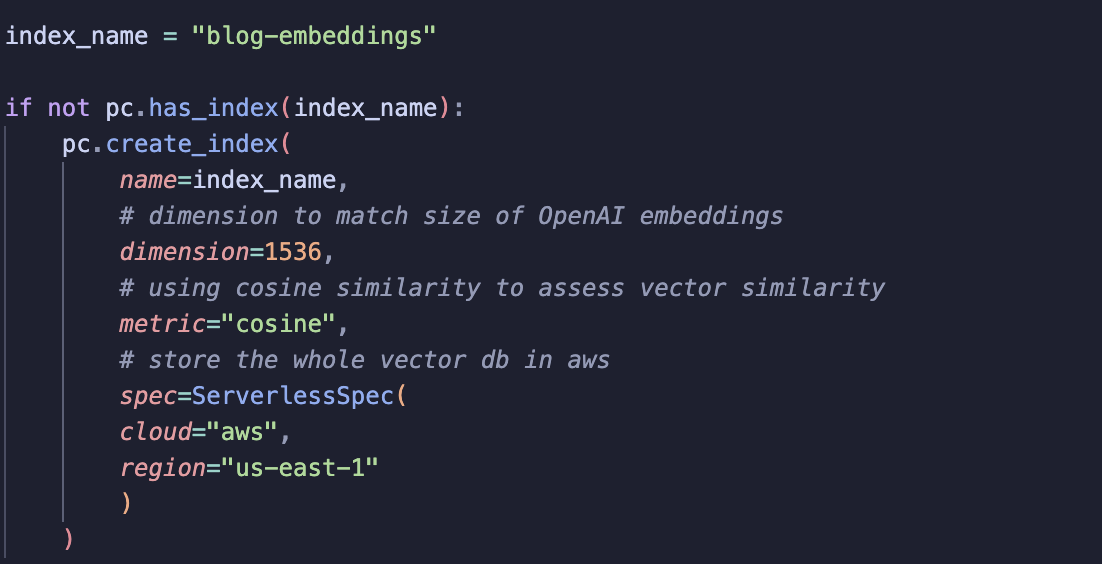
When creating a new index, you need to pass a few parameters:
-
name: the index name -
dimension: the size of the embeddings (OpenAI embeddings) -
metric: similarity metric used to compare vector -
spec: defines the cloud and region where the index is stored
Step 4: Store embeddings with an ID
I decided to generate embeddings and vector IDs at the same time to ensure there is no misalignment between each chunk, embedding and vector ID.
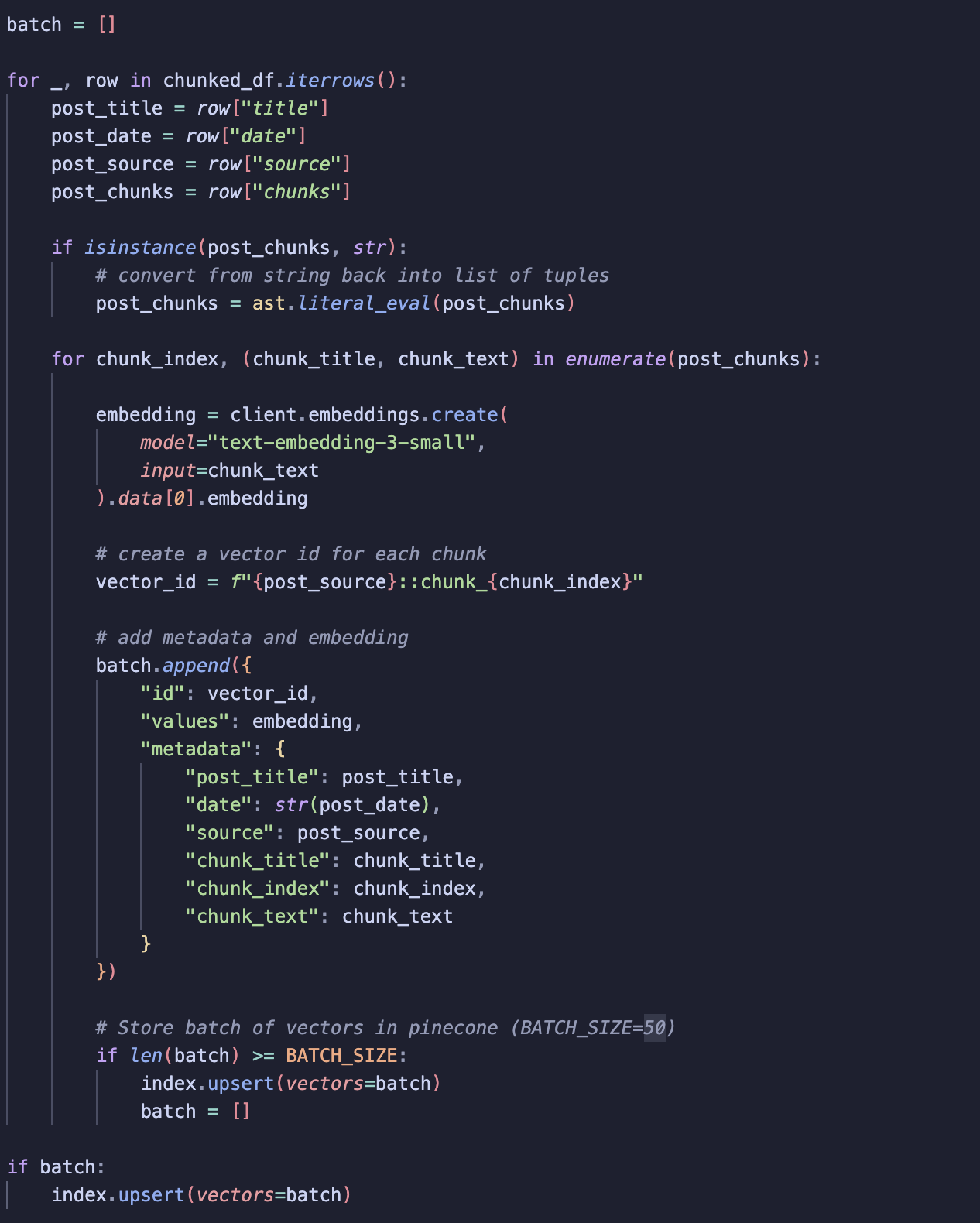
To speed things up, I use batch processing. Instead of sending each embedding to Pinecone one by one, I collect multiple embeddings in a batch and upload them together! Each vector stored in the index includes:
-
Vector ID: a unique id for the chunk.
-
Values: the vector generated by OpenAI embeddings.
-
Metadata: information like post title, chunk title, date and source, which gives the chatbot context for its responses.
Each batch is then upserted to Pinecone. Once stored, the vectors can be accessed whenever needed, so there’s no need to recreate them!
Step 5: Test Retrieval
I ran a quick check to see how well retrieval works!
To test:
-
I define a query and embed it using the same OpenAI embedding model that I used to create the vectors.
-
I query the Pinecone vector database and return the top 3 results.
-
To mimic the final RAG chatbot process (see the diagram in the Chatbot Explained post), I add these top 3 chunks to the original user prompt and parse the LLM’s response.
The results are promising! Retrieval is much more accurate than in my Email Genie project. I think taking extra time to carefully decide how to chunk my data really paid off here!
Evaluation
Ideally, I want a more thorough way to test retrieval than just manually checking returns of a few queries. I think it would be good for me to build a mini test set, especially as I look to build on retrieval and improve it.
Mini-Test Set Explained
The idea is to define 20–30 prompts. For each prompt, I will set the ground truth:
-
The path of the blog post that contains the relevant information
-
The chunk name/s that include the correct answer
This will give me a controlled dataset to check whether retrieval is returning the correct content or not.
Evaluation Metrics
To assess retrieval performance, I plan to use:
-
Recall: measures whether the correct chunks are returned at all. A high recall means the chatbot is finding the correct information among the top results.
-
Precision: measures how many of the retrieved chunks are actually correct. High precision ensures that the chatbot isn’t returning unrelated content.
Summary
So now retrieval is set up, the next step is seeing if I can improve it! Right now, retrieval is pretty simple. It works well, but there are a few things I want to try out.
One thing I’d like to see is whether the chatbot can prioritise more recent posts in its responses by using recency-based retrieval. I’m also curious to see if combining vector search with keyword search returns better responses, or if it turns out that these extra complexities aren’t really needed and the simple approach works just fine.
My next focus will be building a test set that covers different scenarios. That way, I’ll have a proper way to compare performance and pick the best retrieval method!